Segment Holdout Groups Setup Guide
Overview
A Holdout Group refers to a sub-set of Members who are "held back" from a marketing activity (such as receiving an email campaign), while the remainder of Members participate in the activity. The behavior of the two groups is then compared to evaluate how their performance varies based on how the marketing activity did, or did not, impact them. The benefit of having a Holdout Group is to enable marketers to measure lift in purchase behavior, by comparing performance in the target audience versus the performance in the Holdout Group during the offer period.
Marketers can specify that a Segment utilize a Holdout Group, and the system will randomly assign Members in the Segment to be held out. Communication and promotion access are suppressed for these Holdout Groups.
Note the following guidelines regarding the use of Holdout Groups:
-
Holdout Groups can be enabled within the following Segment types:
-
EDP Execution Type
-
Golden Record Execution Type, and both the Dynamic and Triggered features are disabled.
-
-
Segments with Holdout Groups can be used in Cheetah Digital marketing campaigns.
-
The size of the Holdout Group can be defined as a fixed record count, or as a percentage of the entire Segment.
-
The Segment export file format changes when Holdout Groups are enabled (is_holdout denotes a holdout group)
-
The Holdout Group export file name will be the same as the Segment file name but with _holdout appended to the file name.
Enable a Holdout Group in a Segment
The steps in this section assume that you have already created the Segment with the desired selection Rules. See Create a Segment for more information.
To enable the Holdout Group feature in a Segment:
-
Navigate to the Segment Details screen for the desired Segment.
-
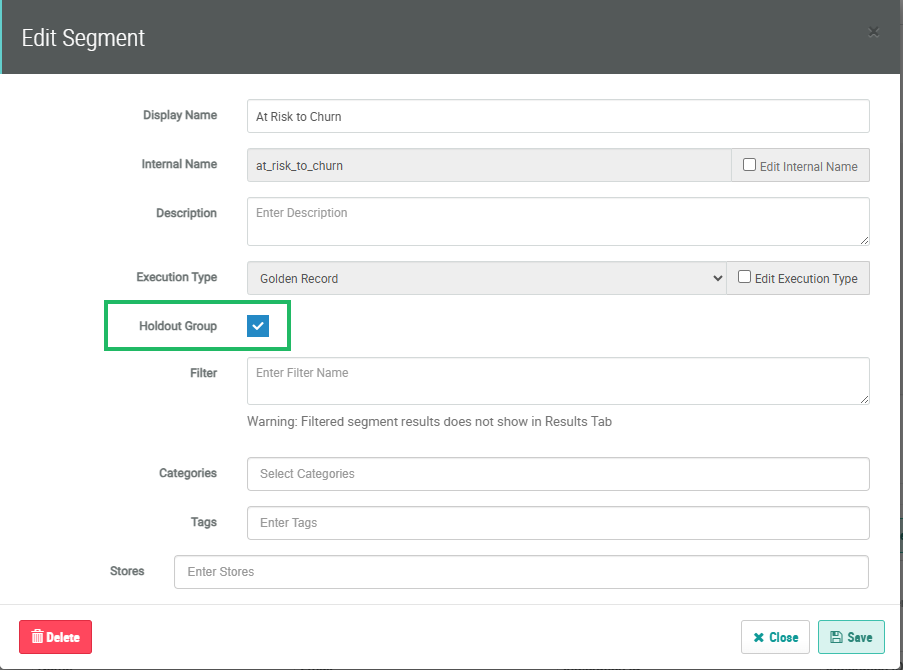
Within the header of the Segment Details screen, click the Edit icon. The Edit Segment pop-up window is displayed.
-
Check Holdout Group (note the above restrictions regarding the types of Segments where Holdout Groups are supported).
-
Click Save.
-
Select the Results tab and click Refresh Members. The platform executes the Segment logic to select Members.
-
When the Segment execution is finished, the platform displays the list of Members selected by the Segment Rules. Click Configure Holdout.
-
Determine the size of the Holdout Group:
-
As a percentage of the entire Segment: Select Percentage, then enter the percentage value.
-
As a fixed record count: Select Count, the enter the count value.
-
-
Click Save and Deploy. The platform saves the Segment and deploys Segment metadata.
c. Click the Save and Deploy button, then the Generate Holdout button.
d. Once the holdout group is generated, the results will display:
-
- The total population size
- The total number of members in the segment
- The number of member in the holdout group
Configure Holdout Groups with Scheduled Export to Cheetah Digital
To generate and configure the Holdout Group for Scheduled Export, there is an additional step that you must perform to schedule the export. First follow steps 1 - 6 in Configure Holdout Groups with No Scheduled Export. Then, do the following:
In the Results tab:
- Refresh the segment at least once by clicking on Refresh Members.
- Choose whether to hold out the group by a percentage or by count.
- Under the Schedule tab:
- Set the toggle to Enabled.
- Choose Once for recurrence.
- Set the future date and time that you want the export to be executed on.
- Select the Time Zone for the selected date/time of export.
- Click the Save button.
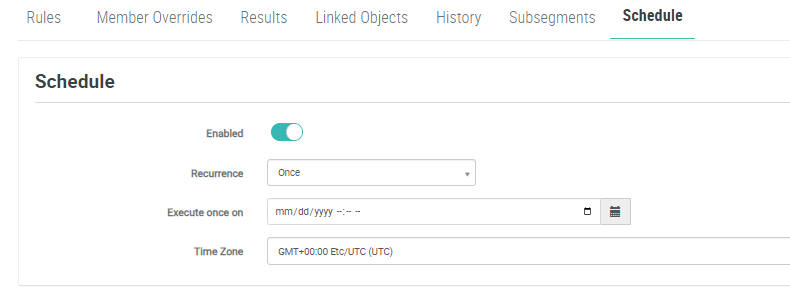
- Back in the Results tab, Click the Save and Deploy button, then the Generate Holdout button.
Note: You will Generate Holdout group via the button while the scheduled export is enabled in the future.
Result: The Holdout Group will be generated on export.